Photo: Mikhail Nilov / Pexels
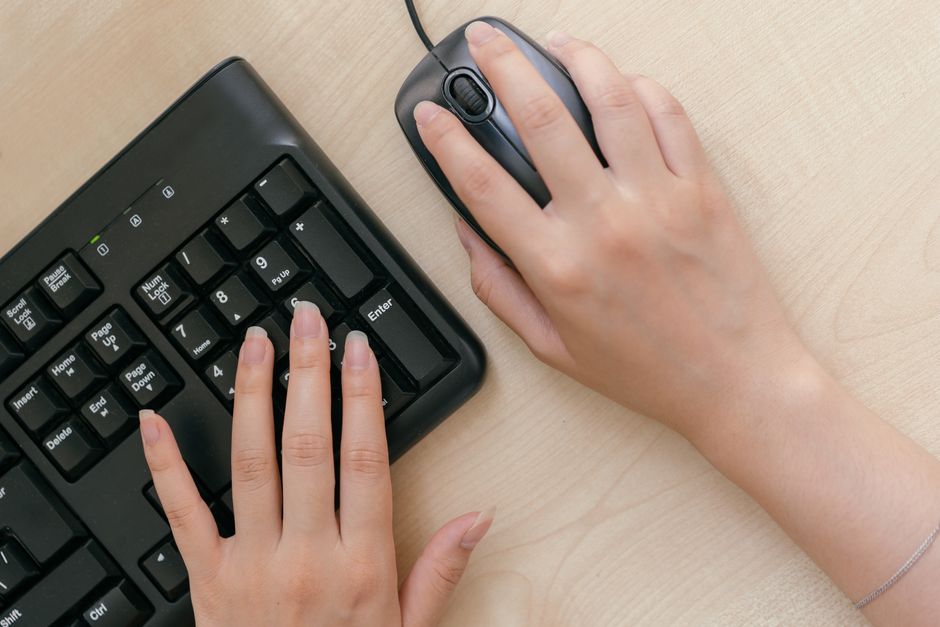
Setting up a home office keyboard and mouse combination is one of the highest-ROI decisions you can make for long-term comfort and productivity. Yet the market offers genuinely different approaches—from budget-friendly vertical mice to premium split keyboards to specialized options like the Kinesis Advantage360—and what works for one person's hand size and work style may not suit another.
This guide compares the actual products and design philosophies mentioned across expert recommendations, breaking down specific pros and cons for each approach so you can match your setup to your actual needs rather than defaulting to whatever is popular.
Before purchasing an ergonomic keyboard and mouse combo, test the wrist rest height and firmness in person if possible, as these directly affect long-term comfort during extended typing sessions and should match your desk height and posture needs. Pay close attention to adjustability features like tilt angles, arm rest positioning, and DPI settings, since a one-size-fits-all approach rarely works for individual ergonomic requirements and body types.
This pairing combines Logitech's premium mechanical keyboard with their flagship ergonomic mouse. The MX Keys offers responsive tactile feedback with adjustable height and angle settings, while the MX Master 3S provides a contoured grip designed for natural hand positioning and includes programmable buttons for workflow customization. Both devices support wireless connectivity and are built for professionals handling typing-heavy work.
Best for: Professionals who type frequently and value premium build quality, responsive key travel, and customizable productivity features. Works well if you have a standard hand size and prefer a traditional mouse shape with moderate palm support.
Microsoft's bundled solution pairs a curved, split-design keyboard with a contoured mouse, both aimed at reducing wrist strain through angled positioning. The keyboard's negative tilt and split layout encourage neutral wrist alignment, while the mouse's cushioned grip and reduced size promote palm support without excessive reach. This is a complete system designed to work together as an integrated ergonomic solution.
Best for: Home office users seeking a cohesive, pre-matched ergonomic system at a mid-range price point. Best if you're transitioning from standard peripherals and want both devices optimized for wrist neutrality without learning a radical new layout.
A specialized, high-end split keyboard with a steep learning curve but powerful ergonomic benefits. It features a dramatically contoured layout that separates keys into two halves, forcing your hands into a naturally splayed position and eliminating wrist pronation entirely. Designed for advanced users willing to invest time in retraining muscle memory for maximum RSI prevention.
Best for: Users with existing repetitive strain issues or those typing 8+ hours daily who are willing to spend weeks retraining on a radically different layout. Best for long-term injury prevention rather than immediate comfort.
These budget-to-mid-range alternatives shift your hand into a handshake position rather than a flat palm-down position, reducing pronation strain. Vertical mice keep wrists straight during clicking, while trackballs eliminate repetitive arm movement entirely. Neither requires keyboard changes, making them a low-friction upgrade. However, they require an adjustment period and may feel unnatural initially.
Best for: Users experiencing wrist or forearm strain who want a quick, affordable upgrade without replacing their keyboard. Best if you can test the grip style (palm, claw, or fingertip) in person before buying, since comfort varies dramatically by hand size.
Many home office workers benefit from upgrading only the keyboard with a split or contoured design while keeping their existing mouse. Mid-range ergonomic keyboards (cheaper than Logitech MX Keys but more advanced than standard boards) offer adjustable height, negative tilt, and wrist rest support. This approach spreads costs and lets you prioritize the device you use most.
Best for: Budget-conscious users or those uncertain which peripheral matters more in their workflow. Good if you type significantly more than you mouse, or if you already have a mouse you like and only want to upgrade one device.
The best choice depends on your budget, hand size, typing volume, and injury history—not on which brand is trendiest.
If you type constantly and have budget flexibility, the Logitech MX Keys + MX Master 3S pairing offers premium build quality and responsiveness without a learning curve. If you want an integrated system tuned for ergonomic neutrality at mid-range pricing, the Microsoft Sculpt works well for users transitioning from standard peripherals. If you already have wrist pain or are typing 8+ hours daily, investing in a vertical mouse or trackball as a low-risk upgrade to your existing keyboard can deliver noticeable relief for under $50.
For the most aggressive RSI prevention, the Kinesis Advantage360 is unmatched—but only if you commit to the retraining period. Most home office workers see equal benefit from combining an affordable split keyboard with a vertical mouse, customized to match your desk height and angle. The key variable across all options is testing devices in person and prioritizing adjustable height and angle settings. A perfectly positioned mid-range keyboard will outperform an expensive device at the wrong angle.
No. If typing is your primary strain point, upgrading the keyboard alone with a split or contoured design delivers significant relief. If mousing causes the pain, a vertical mouse or trackball can be added independently. Many users find they only need one device upgraded, though pairing ergonomic peripherals amplifies benefits.
Comfortable means it feels good in the moment; ergonomic means it supports neutral wrist alignment, reduces repetitive strain injuries, and remains sustainable over 8+ hour days. A soft gaming mouse feels comfortable but may cause long-term wrist extension. An ergonomic device may feel odd initially but prevents injury. For home office use, prioritize ergonomic design over momentary comfort.
Mechanical keyboards offer better tactile feedback and require less force to actuate, reducing finger fatigue during long typing sessions. However, ergonomic design matters more than switch type. An ergonomic membrane keyboard will outperform a standard mechanical keyboard for wrist health. Choose ergonomic form factor first, then pick mechanical if your budget allows.
Test in person if possible. Palm grip (entire hand resting on mouse) suits standard contoured mice and larger hands. Claw grip (fingers curved, palm barely touching) works with vertical mice and compact designs. Fingertip grip (only fingertips contacting device) suits trackballs and very light mice. Testing reveals which naturally reduces strain for your hand size and movement pattern.
For home office work, wireless eliminates cable clutter and allows repositioning without unplugging. Modern wireless mice (especially premium options like MX Master 3S) have minimal latency. The only downside is occasional charging, but this is minor compared to improved desk flexibility. Wireless is generally worth it unless you game or do precision work where milliseconds matter.
No. A $40–60 vertical mouse or split keyboard from a lesser-known brand can deliver comparable wrist strain reduction compared to premium options if the design is sound. The difference is build quality, responsiveness, and long-term durability rather than ergonomic effectiveness. Test mid-range options first; upgrade to premium only if you need better key feel or button customization.
Found this helpful? Share it!
Our team reviews ergonomic furniture, desk accessories, and productivity tools so you don't have to. Every recommendation is based on real research: customer reviews, expert opinions, and value for money. Learn more about us →
This post contains affiliate links. We may earn a commission if you purchase through our links at no extra cost to you.
← Back to Best Home Office Picks Daily| Retailer | Price Range | Shipping | Link |
|---|---|---|---|
| Amazon | Check Current Price | Free (Prime) | View on Amazon → |
| Walmart | Check Site | Free over $35 | Search → |
| Target | Check Site | Free over $35 | Search → |
Prices may vary. Click through to each retailer for current pricing.