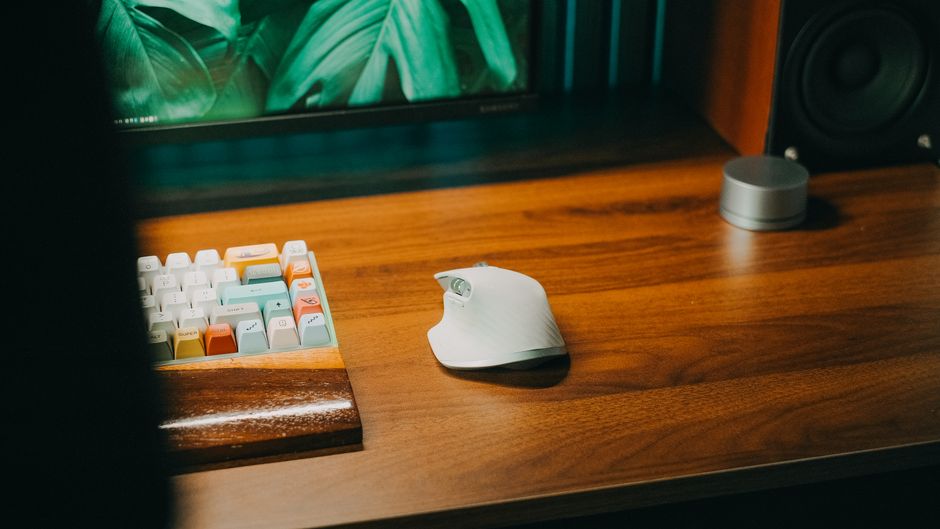
Photo: Pew Nguyen / Pexels
Remote work is the practice of working at or from one's home or another space rather than from an office or workplace.
If you spend eight or more hours daily at your desk, your keyboard and mouse are doing more work than your chair. Poor peripheral setup is one of the leading causes of wrist strain, shoulder tension, and repetitive stress injuries among remote workers—yet most people overlook these two devices when investing in workspace comfort.
Before purchasing an ergonomic keyboard and mouse combo, test the wrist rest height and firmness to ensure your wrists remain in a neutral position when your elbows are at a 90-degree angle while seated at your desk. Pay special attention to whether the mouse fits your hand size and grip style, as an ill-fitting mouse can negate the ergonomic benefits and lead to strain over extended work hours.
The challenge is that there's no single "best" ergonomic keyboard and mouse combo. Different setups solve different problems: mechanical switches offer tactile feedback and responsiveness for typists; vertical designs enforce neutral wrist positioning for those prone to strain; wireless options provide flexibility for standing-desk users; and padded wrist rest systems deliver immediate comfort relief. This guide compares the major categories side-by-side so you can match the right setup to your specific work style and pain points.
Mechanical keyboards with 45–55g actuation force (linear switches like Red or Black preferred) paired with contoured, sculpted mice that follow your hand's natural resting position. Requires less bottoming-out pressure than membrane keyboards, reducing finger fatigue over marathon typing sessions. Brands like COLAMY offer integrated wrist support on both peripherals.
Best suited for typists and developers who spend significant time writing code, emails, or long-form content. The tactile feedback and reduced actuation force prevent the jarring impact of each keystroke while maintaining precision.
Best for: Heavy typists, developers, writers, and professionals who need responsive keypresses without fatigue
Keyboards and mice angled at 45–65 degrees to enforce a neutral wrist position throughout the day. Includes contoured wrist rests and thumb support on the mouse to prevent pronation (palm-down twisting). Offers adjustable angle settings so you can fine-tune positioning as tasks change.
This approach actively prevents carpal tunnel syndrome and chronic wrist pain by maintaining straight-line wrist alignment rather than allowing the subtle pronation that causes cumulative strain. Sunaofe specializes in vertical ergonomic furniture options in this category.
Best for: Users with existing wrist pain, carpal tunnel concerns, or those switching from traditional flat setups for the first time
Cordless peripherals with built-in or paired wrist rests (at least 0.5–1.5 inches thick, preferably memory foam or gel) and adjustable DPI settings on the mouse. Non-slip bases prevent shifting during use. Reliable wireless connectivity without lag is essential for all-day work without repetitive micro-adjustments.
Particularly valuable for users who transition between sitting and standing throughout the day, or those who need to move their setup between multiple desks. The freedom from cables combined with cushioned wrist support creates a balanced comfort-and-flexibility solution.
Best for: Flexible workers, standing-desk users, those who switch between workspaces, and anyone prioritizing both comfort and mobility
A matched system pairing a keyboard (with negative tilt: keys lower toward you) with a dedicated mouse pad featuring an integrated 1.5+ inch thick wrist rest in memory foam or gel. Both pieces include non-slip bases to prevent drift during typing or mouse movements. This is a budget-friendly way to retrofit an existing keyboard with proper support.
The negative tilt keeps wrists in neutral position while the thick wrist rest pad provides immediate relief for users experiencing strain. This combo approach lets you upgrade comfort incrementally without replacing your entire keyboard at once.
Best for: Users with existing keyboards they like, budget-conscious buyers, and those new to ergonomic setup seeking a low-risk entry point
Non-vertical keyboards and mice designed with natural curves that follow hand resting positions, contoured sides, and integrated palm rests. May use mechanical or membrane switches depending on brand, but emphasize ergonomic form factor over switch type. Lower actuation force reduces bottoming-out pressure compared to standard keyboards.
This is the middle-ground option: not as aggressive as vertical designs, but more intentional about wrist alignment than flat peripherals. Bridges the gap between users who want ergonomics without the learning curve of a completely different form factor.
Best for: Users wanting ergonomic benefits without a steep adjustment period, and those who prefer familiar keyboard layouts with added comfort features
For pure typing comfort and responsiveness: Mechanical keyboards with 45–55g linear switches paired with contoured mice win. The reduced actuation force and tactile feedback prevent bottoming-out fatigue that compound over 8+ hours. Brands like COLAMY excel here, though expect to pay premium prices.
For preventing and reversing existing wrist pain: Vertical keyboard-and-mouse setups are the most direct intervention. They enforce neutral positioning that flat peripherals can't achieve, making them worth the 2–3 week adjustment period if you have carpal tunnel concerns or chronic strain. Sunaofe's vertical ergonomic options dominate this category.
For flexibility and standing-desk compatibility: Wireless peripherals with integrated wrist rests offer the best balance of comfort and mobility. They're ideal if you transition between sitting and standing, move between desks, or need to adjust your setup frequently without tangling cables.
For budget-conscious upgrades: A keyboard + dedicated thick wrist rest mouse pad combo lets you improve an existing setup without replacing everything. This is a smart entry point for users skeptical about ergonomic claims, since the wrist rest pad provides immediate, tangible relief at 1/3 the cost of a full mechanical system.
The real insight: The "best" setup isn't about the keyboard or mouse alone—it's about the combination matching your specific pain points and work style. A user with existing carpal tunnel needs vertical positioning; a typist needs mechanical switches; a standing-desk user needs wireless; and someone on a budget needs a wrist rest pad upgrade. Test within your category before committing to a $400+ investment.
Mechanical switches (45–55g actuation) require less pressure and don't force you to "bottom out" every keystroke, reducing finger and wrist fatigue over 8+ hours. Membrane keyboards require more pressure and create a jarring bottoming-out sensation, contributing to fatigue. For all-day comfort, mechanical is measurably better, though it costs $100–200 more.
Most users experience a 2–3 week adjustment period where typing speed drops 20–30% as muscle memory resets. By week 4–5, speed typically returns to baseline while wrist strain drops significantly. This makes vertical setups a commitment, not a quick fix—only worthwhile if you have existing pain or want to prevent it long-term.
A thick wrist rest pad (1.5+ inches, memory foam or gel) paired with a negative-tilt keyboard provides immediate comfort relief and is a proven entry point. However, it won't enforce the same level of wrist positioning as a dedicated vertical keyboard. Use this as a low-risk trial before investing in a full vertical setup.
Modern wireless keyboards and mice have negligible lag for standard office work. The key is choosing reliable connectivity (not budget Bluetooth), maintaining charged batteries, and pairing with a mouse that offers adjustable DPI. Lag-free wireless is absolutely viable for all-day comfort work, especially for standing-desk users who value flexibility over wired responsiveness.
Keyboard and mouse setup is foundational but not sufficient alone. Check your desk height (elbows should bend at 90 degrees when seated), monitor position (top of screen at eye level), chair support, and posture. Wrist pain often stems from these upstream factors; improving peripherals alone won't fix misalignment elsewhere in your workspace. If pain persists after 4 weeks, consult a physical therapist or occupational health specialist.
Found this helpful? Share it!
Our team reviews ergonomic furniture, desk accessories, and productivity tools so you don't have to. Every recommendation is based on real research: customer reviews, expert opinions, and value for money. Learn more about us →
This post contains affiliate links. We may earn a commission if you purchase through our links at no extra cost to you.
← Back to Best Home Office Picks Daily| Retailer | Price Range | Shipping | Link |
|---|---|---|---|
| Amazon | Check Current Price | Free (Prime) | View on Amazon → |
| Walmart | Check Site | Free over $35 | Search → |
| Target | Check Site | Free over $35 | Search → |
Prices may vary. Click through to each retailer for current pricing.